OTHER
IMPORTANT SUBJECTS - COVERED IN DEPTH
DAILY
CASH FLOW REPORT:
One
of the most important things you will need to do each morning is your cash flow
"Daily Report". We use a special software program to create ours, which
makes it a breeze to do, and takes less than a few minutes each day!
In
order to compile your daily report, you will need the following 3 things from
the last twenty four hour period:
- Number
of Orders Received for all products
- Number
of Refunds Processed for all products
- Number
of Unique Visitors that came to your site
Your goal is to figure out your "Dollars Per Unique Visitor", therefore
you need to know how many sales you made, how many refunds you processed, and
how many unique visitors came to your site.
If
your sales are down, or your refunds are way up, you'll want to keep informed
of this and by taking only few minutes each day, you can create a running report
that will give you insight into what exactly your situation is.
You
can obtain the number of orders, and refunds from your merchant admin area. You
can obtain the number of unique visitors through your stats tracking system.
If
you don't have a stats tracking system in place, don't worry. We cover setting
up the very popular "Web Trends Live" service near the end of this manual.
For
more information on the software used to create the daily report please visit:
http://www.statsprogram.com
DEALING
WITH ORDER PROBLEMS:
While you are
collecting the data for the Daily Report, and are totalling the number of sales
made, and refunds processed the previous day, make sure to also pay careful attention
to FAILED orders.
These are usually
visible in your administration area, for whichever credit card company processes
your orders.
Regardless of
which company takes care of your card processing, you should be able to see the
following, at a glance:
- Successful
Orders
- Declined
Credit Card Orders
- Failed
Electronic Checking Orders
- Refunds
you have Processed
If you use Verisign/Signio,
these are available in your "Daily Activity Report" or "PayFlow
Link Reports". Accessing this date through PayFlow links main screen is preferable,
because included on one page it shows the customers name, the price, and name
of the product they tried to order, and what the response was.
If you're processing
system does not offer you access to the important data we have mentioned, you
should ask if they are able to provide it to you. It is terribly important that
you be able to view, and act upon declined, or duplicate charges without too much
trouble. The successful orders should take care of themselves, but you're the
one that has to deal with the customer chargebacks if a duplicate charge goes
unnoticed!
If you click on
the Transaction ID (which is not showing in example below for security reasons)
it allows you to click and see further information, such as the customers address,
telephone number, email address, etc. This is very helpful information for
the customers who's orders were NOT successfully processed.
The main screen
also shows the processing code, so you can easily see who's order was declined,
and in many cases, why it was declined.
Our example below
shows a handful of orders, however, the "1000" code shows us that these
people attempted to order via electronic check, but were declined. This is usually
caused by incorrect or missing electronic check data, such as the routing number.
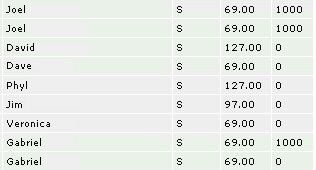
You can see the
first person in the list tried twice, with no success. He needs to be contacted,
with an offer of assistance.
Do not wait
too long to contact this person. If you wait 2 or 3 days, chances are this person
won't even remember what the were ordering in the first place!
In order to contact
this person, we click on the Transaction ID number for the failed order, and obtain
the telephone number, and email address, so that we may contact him/her.
For the first
contact, email is fine. Chances
are, if someone tries twice to order, they really want the product, and
won't mind receiving a helpful email, and a follow up telephone call if you don't
see their order come in anytime in the next few days.
 Ideally, you should take the person's name, email address, and telephone number
for the declined orders, and add them to a dated list on your desktop after you
contact them for the first time. Later on, when you see that their order has been
successfully processed, you can remove them from your list. That way, no one is
overlooked.
Ideally, you should take the person's name, email address, and telephone number
for the declined orders, and add them to a dated list on your desktop after you
contact them for the first time. Later on, when you see that their order has been
successfully processed, you can remove them from your list. That way, no one is
overlooked.
You can create
an ICQ note for the "dated list" mentioned above. Each time you load
ICQ, (which should be in the early morning), the note will appear on your screen!
You can also
use a spreadsheet in Microsoft Excel, or Microsoft Works, but you may find that
it's not as easy to access, and probably won't be something you care to keep open
all day. Depending on how much RAM you have, it may suck up too many system resources,
and crash your computer!
At the time
I am writing this I have 184 MB of RAM, and on some days, depending on how many
programs I have open, I simply can't risk opening an Excel file when it's not
necessary. The ICQ note is already open on my desktop, so in my opinion, it's
far superior to a spreadsheet.
IMPORTANT
OFF TOPIC TIP: Always, always save your work frequently. While writing
this specific page, I crashed my system twice and lost all content each time.
Right now, I'm on the third re-write!
If you email someone,
and offer assistance with their order, but don't see any new order from them within
3 days, you can always call them, and offer to accept their order over the phone.
Prior to calling the person on the phone who's original order attempt was unsuccessful,
make sure to open up your transaction terminal, (if you don't keep it open all
day), and any administration area you may need to create this person a username,
and password. That way, they don't have to wait on the phone while you get prepared!
When you have
processed their order on the phone, ALWAYS be sure to add them to your autoresponder
series, so they can receive any follow up messages you use, just as if they'd
placed their order online. This
is especially important if your autoresponder is set to submit a receipt upon
receiving an order.
If your autoresponder
is not set up to send instant customer receipts, you definitely need to start
doing that now. If not, you may find during the month of February and March, all
you're doing is sending customer receipts for income tax purposes! Quite certainly
your time can be better spent...
The second person
to receive a "1000" code in the example above tried to order twice as
well, however we can see that on the second try, his order went through, without
difficulty. We do not NEED to contact him.
If you have some
spare time, you can certainly send this person a follow up email at the time you
see their order has been processed. In the email make sure to state you are aware
he/she had a few initial problems ordering, and that if they do have ANY further
trouble from that point on, that you are available to provide customer support.
If possible, offer
some tips that may help prevent any future problems, such as "When logging
into the password protected area, make sure you don't use any CAPITAL LETTERS,
or else you will receive a login error."
If I was the
customer, after having some initial problem I know I would feel better receiving
an email from the company, with an assurance of immediate support, should I need
it in the future. I believe this is especially true for people that just made
their first online purchase.
Transaction
Reponse Codes - What do they mean?
Each type of transaction
has it's own response code. You must familiarize yourself with what these mean,
because if someone has a problem with their order, and requests a real time Human
Click chat with you, you will need to know at a glance exactly what the problem
is, and won't have time to go digging through HELP files to figure out what a
12, or 1000 code means.
At first it's
hard to remember all of them, so you might want to print them out, with their
meanings, and leave this by your computer somewhere, for easy reference. If you
consult with the HELP system provided by your processing company, you should find
the list there.
If you're able to, try and keep the merchant transaction window open all day that
allows you to access your order reports. If you get into a chat with someone who
crashed prior to viewing the "Your order has been approved" page, they'll
want to know the status of their purchase, and won't want to wait while you open
your browser, access the admin area, and dig around for any signs of their order.
Additionally,
if you can get it set up, it's ideal to have an email go out automatically containing
helpful information, and troubleshooting tips for order problems, the minute someone's
order has been declined. That way, if, or when they open their email program to
contact you by email for help, the "troubleshooting tips" page will
already be there, waiting for them. It should have a subject line similar to the
following, so it can catch their attention:
<Name>,
we see you had problems ordering <product name>
Or:
<Name>,
assistance for ordering <product name>
If you've already created your visual screen shot tutorials covering the subject
of order problems, you can simply include a link in the email, leading to that
web page!