|
Web
Operations Manual
Start
of any Business Day, early A.M.
6:00
AM: Turn on ICQ to check for new customer messages, express email
letters, and ICQ system notices, resulting from the ICQ contact information appearing
on the website.
 If you have an ICQ number, you have a communication center url of your own, which
you can provide to your website visitors!
If you have an ICQ number, you have a communication center url of your own, which
you can provide to your website visitors!
In
order to give your visitor's your ICQ communication panel URL, all you have to
do is provide them with the following URL: http://wwp.icq.com/YOURICQ#
For
example, because our ICQ number is 8554540, our url would be: http://wwp.icq.com/8554540
Make
sure to note that the url begins with WWP, not WWW as they usually do. WWP stands
for "World Wide Pager".
You
may want to take your WWP url, and include it on your company site, near your
other contact information, so your customer can contact you, right through your
site. You may also add the WWP url to your outgoing email messages!
If
you don't have your own ICQ program, you can download it, for free, from here:
http://www.icq.com
When
using the ICQ communication center on your site, make sure to include "anyone
may add me to their contact list", in YOUR ICQ preferences, so the customers
can contact you, for help, without having to wait until YOU grant authorization.
That way, they can message you at anytime, even while you're offline.
One
drawback of having anyone being able to contact you, at anytime without authorization
is that you will definitely receive a lot of junk messages, and requests for chats
in general, that have nothing to do with your business, but they are simple to
deal with by using the "Add to Ignore List" feature that ICQ provides.
Anytime
someone contacts you, and you don't want to receive any further messages from
them, highlight their name on your contact list, and from the menu that appears,
click on MOVE TO IGNORE LIST, like this:
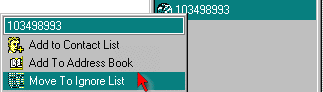
Once
you click that, any messages received from that person will be deleted.
Respond
to any new ICQ messages which enable you to "reply" to the customer,
using ICQ. An email Express message, or an ICQ Pager message should be sent through
Eudora, or your favorite email program, and NOT via the ICQ email feature.
The
reason for this is because eventually, you will need to search for an email "history"
on a customer, and if the email is not contained inside your main program, you
won't be able to easily find past messages. Additionally, you won't have your
favorite stationary on hand, or signature files.
You can set up ICQ so that when you click "Reply" to an ICQ Email Express
message, it actually opens in Eudora.
Here's
how:
Make
sure your ICQ program is open. Then, click on the ICQ button, next to the green,
or red flower at the bottom. (If you're online the flower will be green. If you're
offline, it will be red.)
Once
you've clicked the ICQ button, a small menu will appear, like this:
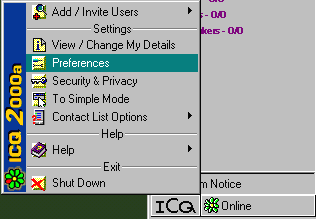
Click
on "Preferences". Doing so will bring up another window, which enables
you to edit, and change your preferences. What you want to do is locate the feature
for EMAIL, from the choices on the left. Once you've clicked EMAIL from the left,
the following will appear on the right hand side:
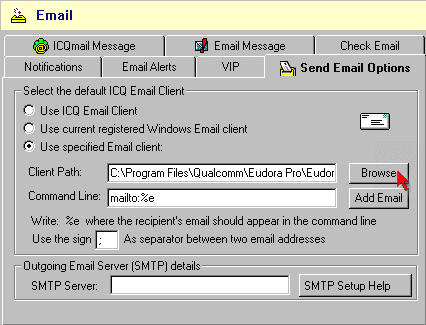
1)
Make sure you have selected the "SEND EMAIL OPTIONS" tab from across
the top of your window. If it's selected, you should see the same screen showing
above.
2)
Click the BROWSE button, as shown above, with the red mouse arrow.
A
Windows Explorer type of window will then appear, like this:
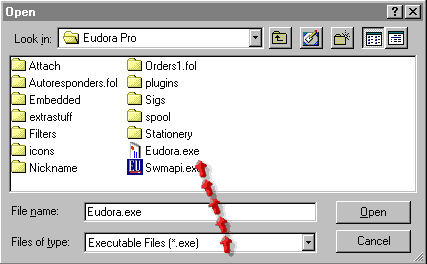
What
you want to do is go into your Program Files, and choose your Email Program. In
this case, we have chosen Eudora Pro, and the program name of eudora.exe
3)
Select the .exe for your mail program, and then click OPEN.
4)
Then, click the APPLY button at the bottom of the window showing underneath, and
that's it.
Next
time you receive an incoming ICQ Email Express message, you will be able to click
the default ICQ Reply button, and your main email program will open right up.
Type the reply to the customer, and click SEND as you normally would, with any
other message. It's a real time saver, and makes it easier to search their History.
IMPORTANT:
MAKE AN "ICQ" NOTE FROM ANY MESSAGES THAT ARE NOT ABLE TO BE DEALT WITH
IMMEDIATELY.
ICQ
allows you to create "ICQ Notes", which are very helpful. If you
receive an ICQ message that you can't deal with immediately, make a "Note"
of it. The note remains on your desktop, until YOU remove it after it's been dealt
with. You can add to the notes, and keep a daily running list of things to do...
The
great thing is, even if you reboot your computer, the note will re-appear, until
you choose to either "Hide" it or "Delete" it!
HERE IS AN EXAMPLE OF HOW TO CREATE AN ICQ NOTE:
1)
You receive a message from someone on ICQ.
2)
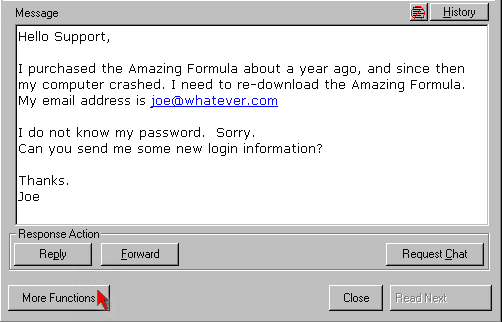
Open the message,and click on "MORE FUNCTIONS", as shown below:
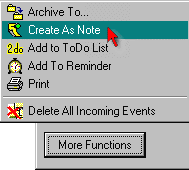 |
After
clicking "More Functions", choose "Create as Note", as shown
below: |
Upon
doing so, the following will appear on your desktop. This is the ICQ Note!
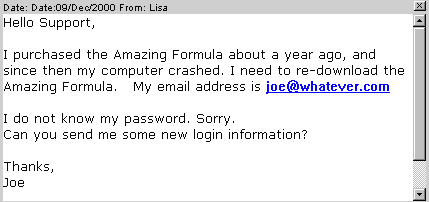
Until you actually "Right Click" on the note itself, and choose "hide"
or "delete", it will remain there. You can actually use one note, for
lots of things, as it allows you to type additional information on the existing
note. The background color, font type, and font color are customizable as well!
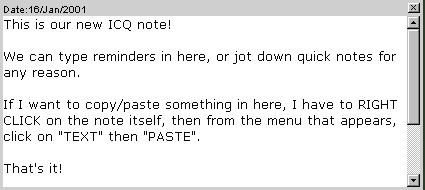
If
you want to write yourself a quick note, simply open up a new ICQ note, and type
into the message area, like this:
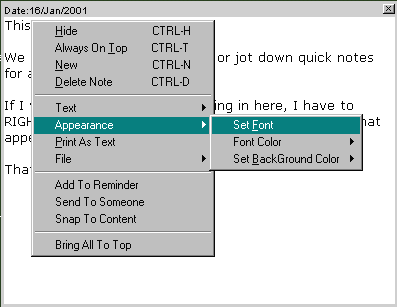
If
the default font isn't something you want to use, you can change them, or the
background color, by right clicking on the note, and making your choice from the
drop down menu, like this:
If
you have numerous ICQ messages, email letters, and pager messages, it may take
you up to twenty minutes to respond to them, as long as you are organized. The
short cuts noted above are a great time saver.
|