OTHER
IMPORTANT SUBJECTS
WEB
TRENDS LIVE TO TRACK YOUR UNIQUE VISITORS:
In
order to create your "Daily Report", as mentioned in Chapter Thirteen,
you will need to know how many Unique Visitors you've had the day before.
If
you're not using any sort of tracking system, (we are not referring to a visible
"hit" counter that counts every single image on your page as 1 hit because
those results are not reliable) then you may want to sign up for an account at
Web Trends Live. http://www.webtrendslive.com
At
the time I am writing this, Web Trends Live offers three packages. The smallest
package is FREE, and is the "Personal Edition". Only weeks ago this
package was $29.95 per year, however they seem to have changed this to a Free
service.
The
only drawback of using the FREE package is that you only receive your reports
online in .html format, and they require you to display a small button on your
site, similar to this one:

(They
do allow you to choose from a range of button colors!)
The
next package offers you the choice of .PDF, .HTML, Word, Excel, Secure .HTML and
other wireless access features, in addition to allowing multiple users to access
the reports, and also offers you daily scheduled reports of the last days traffic,
sent to you, by email.
If
you really don't care to include the button on your site for esthetic reasons,
then you can use other tracking services, that allow you to display an invisible
gif image instead. One such place is http://www.thecounter.com
I
have used the service provided by the Counter in the past, however in my experience,
although the service is good, the options are not as robust as those offered by
Web Trends Live.
For
our example, we will use the FREE Personal Edition package from Web Trends, which
does require the button be added to your site.
Once
you've created your account with Web Trends, you need to login, and obtain the
HTML code, which you need to place on each page of your site that you want to
track.
 Although
it's not required to place the code on every page, if you do have more than one
product page, or sales letter, you may want to place the code on each of those.
Although
it's not required to place the code on every page, if you do have more than one
product page, or sales letter, you may want to place the code on each of those.
Simply
visit http://www.webtrendslive.com
and locate the "Login" area.
Once
you have logged in, and are inside the administration area, you will see the following,
on the right hand side:
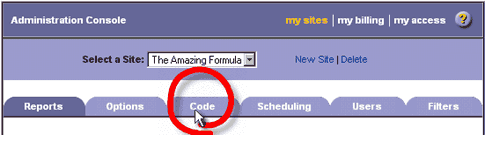
Click the tab
that is labelled "Code".
Doing so will
bring up a new window, which will show you the different ways you can implement
the code, into your site.
Basic
Tracking Code
For Personal Edition sites and sites not needing to implement
custom code.
Use
an Include File to Implement Your Code
The preferred method for implementing the WebTrends Live tracking code.
Customize
Your Tracking Code
Needed if tracking content groups, eCommerce data, or server clusters.
For our example,
we use the basic tracking code.
Simply click the
link on the Web Trends Site, to bring up the basic code. It will be ready for
you to copy/paste.
Highlight the
text in the box that contains the HTML code, and once you've copied it all, you
must paste it into your webpage.
IF YOU ARE
USING A WEB PAGE EDITOR, SUCH AS DREAMWEAVER, FRONT PAGE 2000, OR HOT DOG:
Read the list
of possible problems resulting from the use of a WYSWIG editor.
Apparently there
can be resulting problems if you don't insert the code properly.
When you've done,
save the page, and upload that to your server.
Anytime after
that, you can login, and view your stats!