OTHER
IMPORTANT SUBJECTS - COVERED IN DEPTH
This
section deals with a variety of other important subjects, that you will need to
know. They are listed in no particular order.
CUSTOMER SUPPORT
TUTORIALS:
Anytime a situtation
occurs repeatedly that requires you provide support, such as a customer informing
you they are having problems downloading your product, or completing the order
form, you will want to create a short, visual tutorial that you can offer them.
This is a great time saver, and is VERY helpful to the customers. It also reduces
the time you need to spend responding in depth to the same customer problems over
and over.
As time goes by,
your list of much needed tutorials will increase. They will probably end up covering
the following areas:
- Downloading
your products in .exe and/or .pdf format
- Printing
your products in either format
- Completing
your order form for credit card orders
- Completing
the order form for checking account orders
- Logging
in to your password protected sites
- Overcoming
"declined" purchase error messages
Of course, depending
on your product/service, your tutorials may vary. Create them at your own discretion.
In order to create
a customer tutorial, you will need to be able to create a .html page to place
on your website server. You then provide the web site address to the customer,
for the specific tutorial they will benefit from.
Since pretty much
all tutorials are made to include visual screen shot images, you will need a SCREEN
CAPTURE program to use.
There are many
screen capture programs you can choose from. If you don't want to pay for the
screen capture software just to take a few screen shots, there are always freeware
versions you can use, but they will provide you with less options.
Some of the more
popular Screen Capture programs include:
Screen
Print Gold
Snag-It
Capture
Express
Grabbit
Capture
Eze
You may want to
download a few of them, and try each separate one, then keep the one you find
easiest to use! Most of them allow you thirty days with which to evaluate the
product.
SAVING TIME
BY USING PERFECT KEYBOARD:
One of the best
programs I have found to use when providing customer support is Perfect Keyboard.
http://www.softwareutilities.com
When you repeatedly
type the same phrase, email address, or web site address over and over again during
the day, you are doing one of two things.
- Causing extra
stress on your wrists from typing too much
- Using your time
that could be better spent on other things
It's
simply not necessary to type the more common items more than once to record it
as a macro in Perfect Keyboard, so that you can use them over, and over again.
For
instance, throughout the day, I find myself having to provide the company url
many times. Instead of typing: http://www.amazingformula.com all I have to do
when Perfect Keyboard is on (if you set it to launch on start up of your computer,
it will sit in your system tray, using very little resources) is this:
.af
That's
it!
Since
it requires that you type the period key before the short phrase, you don't accidentally
trigger it when you don't mean to.
I've
used many of these keyboard shortcut programs before, and they all require that
you do things like hit CTRL+SHIFT+F8 or whatever it may be, in order to launch
the macro. That is way too difficult. Plus, it's not easy to remember them when
they are that difficult.
With
perfect keyboard, your biggest worry is not to make two macros that start out
with the same characters.
When
Perfect Keyboard is on, sitting nicely in my system tray, and I type .af it expands
to this: http://www.amazingformula.com
When I type this:
.vm1
It expands to
this:
Here are the
new voice mail messages:
==============================
Message #1
Time:
Name:
Phone:
Email:
Comments:
===============================
Everything is
formatted exactly as it was when you recorded the macro into the program, so all
you have to do in the case of the voice mail messages is fill in the blanks.
There are many
things you can use this for, such as:
- email addresses
- web site addresses
- form letters
(templates)
- letter introductions
- product names
- signature files
- filling out
forms
- hard to remember
passwords
- launching other
programs, ( Example: when I type .note, Windows Notepad automatically opens!)
- pre-written HTML
code for page templates
- inserting date
and time
- and just about
anything else you can think of.
Instead of writing:
In the event
you are in need of further assistance, do not hesitate to respond to this email
message.
We type:
.in
As I mentioned
above, it's a great time saver!
HERE
IS HOW YOU USE PERFECT KEYBOARD:
When you've downloaded
Perfect Keyboard to your computer, you will need to specify your macros. This
is really easy. Simply open the program by clicking the icon from your system
tray, as shown below with the red arrow:

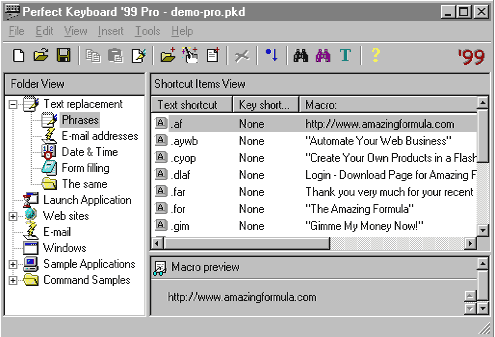
Doing so will
bring up the program, like this:
Move
your mouse over to the "Shortcut Items View" area, and RIGHT CLICK.
Doing so will bring up a small menu, like this:
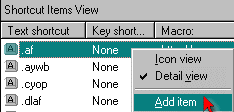
Click
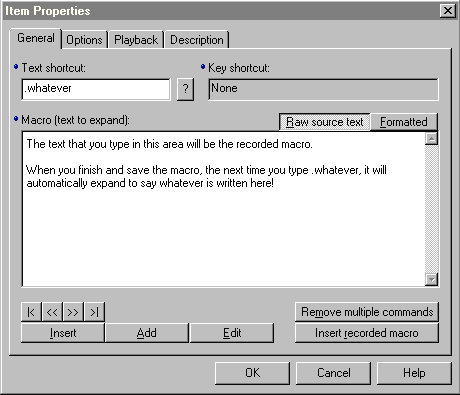
on "Add Item", and a box will appear, that looks like the following
screen shot. Before taking the screen shot for this example, I included some instructions
in the text box below, so you can see what fields you need to complete.
The
first thing is the "Text Shortcut" field. This is where you enter your
.whatever that will launch your text when needed.
The
second thing you need to do is to type in the "Macro (text to expand)"
into the larger form area, as shown above. Simply type the sentence, letter, product
name, or whatever you want, exactly as you want it to appear when activated.
When
you've written your text, the next thing you need to do is to click the OPTIONS
tab from across the top, and check off "Auto-Expand" as shown below.
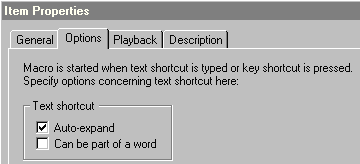
You
can also have it launch as part of a word, if you like.
There
is one last thing to do before you're done, and that is to click the "Description"
tab across the top, and enter a proper description for the macro.
Example:
typing .af expands to be "The Amazing Formula", therefore, I have used
exactly that, for the description. When you're done, click FILE, then SAVE. That's
it!
Next
time you find you're about to type the same text over again, for which you've
already created the macro, simply type your .whatever, and it will expand immediately,
saving you lots of time!