We
use Human Click Pro, because we like to save copies of our chat transcripts, but
you may be able to get by with their FREE version. It really depends on how much
traffic you receive, and how busy you are. The Pro version allows you to use advanced
options, such as Canned Responses, and the ability to push pages. Either way,
definitely choose one of them, unless of course you're already using another similar
service, such as http://www.LiveHelper.com or http://www.itotel.com
I've
never used ITotel.com, so I can't vouch for their services, but I've used LiveHelper,
and it's pretty good, especially since it allows you to take remote control of
a customer computer.
The
"remote control" is a great benefit, especially for persistent login
problems, or order form problems. The remote control feature lets you "see"
what the customer sees, and when you move your mouse on your system, it moves
on the customers computer. That allows you to login for them, or complete the
order form, while they watch. It runs off of Active X, so the customer must have
that enabled, however, the majority of new browsers have that as a default feature,
so they won't have to fiddle around with their settings.
Ideally,
you can use both Human Click, and Live Helper. A good idea would be to use Human
Click for general chats, and embed the Live Helper code into a "Troubleshooting"
page, so if the customer needs it, you can push that page onto their browsers
in Human Click, then get them to click the Live Helper icon, and go from there.
The
remote control feature does require a few minutes to load, even on a cable modem,
however, it's really worth it in my opinion. If the customer gets worried that
their mouse is moving, without their touching it, or panics in any manner (since
you can access ANYTHING that resides on the desktop) they can close the window,
at anytime.
Assuming
that you've got at least the free version of Human Click on your system, turn
it on, providing you are ready to respond to any chat requests that may arrive
immediately.
Once
Human Click has been activated, the ideal thing to do is to sort the visitors,
so that any "in site" visitors will appear at the top of the Operator
Window.
Without
sorting, this is a small screen shot of how it would look, which is obviously
somewhat disorganized:
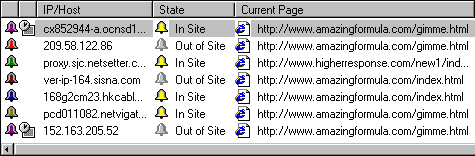
You
can see above, that the "In Site" visitors (which are the important
ones!) are mixed in with the "Out of Site" visitors, who can't possibly
request assistance from you.
You
want to click on the "STATE" button, and sort them, starting with ALL
the "In Site" visitors, like this:
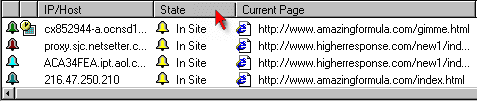
That
way, if anyone requests a chat with you, you won't have to scroll through the
many visitor's, in search of the person who needs help. You don't want to keep
them waiting, so sorting as mentioned above allows you to have a view like this:
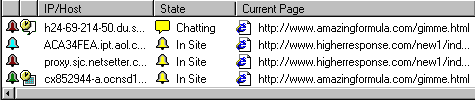
The
person needing help is right there at the top.
For
the most part, you probably won't receive any Human Click messages immediately
upon going online, therefore you can move the window to your system tray, and
continue on with other things. If anyone requests a chat, a window will appear
on your screen, asking you to accept the chat. Of course you accept the chat IMMEDIATELY
upon seeing the request window, to avoid the customer experiencing any sort of
delay.
Depending
on your internet connection, and whether or not you are the primary registered
user of Human Click or simply an extra operator, there may be a delay in the time
the customer requests the chat, and the time the request box appears on your screen,
so always accept the chat immediately, before the customers leaves the site thinking
no one was there to accept.
If
you need to leave your computer for a few minutes, you can choose "Back in
Five Minutes" from the operator window, like this:
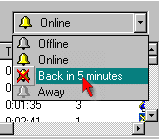
When
you return back to your computer, don't forget to change it back to "ONLINE"
mode. If anyone requests a chat while you are gone for five minutes, the request
box will appear on your screen, and it won't default to email like it does if
you go offline.