EMAIL
ATTACHMENTS AND COMPUTER VIRUSES.
Here is a good
rule of thumb to use when dealing with attachments:
Never open them,
until you have scanned them with your antivirus program first.
If you're not
sure who they are from, don't open them, ever. A lot of people send .doc files,
by email, as opposed to actually typing their message into the email body. You
must email them back, and request they copy the message from the .doc file, and
paste it into the email, then send it back. You can use a canned response for
this, so you don't have to type the same email over and over again.
When dealing with
small or large amounts of email, you should have some sort of anti-virus email
protection working for you, in addition to your regular antivirus software.
A
good choice in this area would be Norton AntiVirus 2000, or the latest version
they offer at the time you are reading this. Their email protection scans each
message FIRST, before it downloads to your computer! You can then safely say,
(providing your virus definitions are updated constantly!) that your mail will
be virus free, although you still shouldn't open email attachments, unless you
KNOW the person that sent them, and are 100% certain they're safe.
While
your email is downloading, Norton Anti Virus email protection is hard at work,
reading each email message, BEFORE it arrives in the mailbox. Here's a shot of
how it looks, while your email is downloading. (It's the little grey envelope,
on the taskbar)
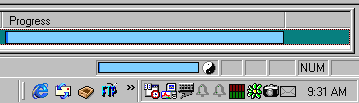
Obviously
it's very unobtrusive, sitting in your system tray, and uses up a very small amount
of system resources! Depending on which anti virus program you use, you may NOT
have the extra email protection. If you're not sure, check with the HELP file
of your program.
USING
EMAIL FILTERS TO SAVE TIME SORTING
The
use of email filters saves having to sort a lot of common email, such as order
confirmations, support requests, or just about anything you repeatedly receive.
Ideally, you should have all the support requests filtered into a special mailbox.
That ensures the messages are not mixed up, lost, or overlooked. It's easy to
set up mail filters in Eudora. If you're not sure how, you can use the example
below, or, check the help file in your email program.
Here
is how to open your filters, in Eudora:

Once
your filters open up, you will want to create a new one, for support requests.
Click on NEW, from the choices near the bottom left hand side of the open window.

A
new window will appear after you click NEW. It looks like this:
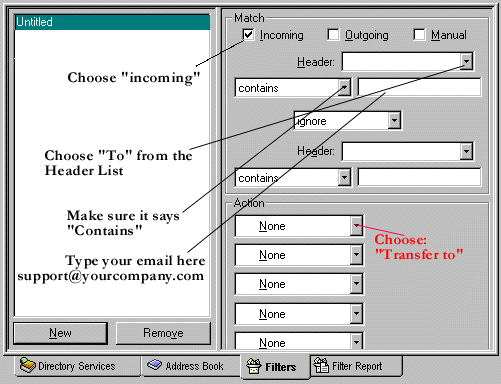
Select:
"Incoming"
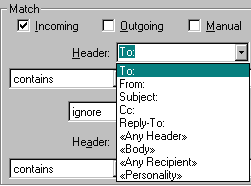
Then
click the drop down arrow by "header" and choose "TO" from
that list, as shown below.
Make
sure it says "Contains" as shown above.
In
the space beside "contains" type your support@ email address. Generally
it would be: support@yourcompany.com
There
are two sections labelled "contains" and "Header" but you
don't need to fill in the last two. Only the first ones are required. If you are
confused, check our example at the end of this section, which shows a fully completed
mail filter.
The
next step is to choose the "ACTION". In this case, we want to choose
"Transfer To", as shown below:
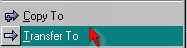
Once
you click "transfer to" the following will appear, on the left hand
side:

You
obviously don't want your support@ mail filtered into the inbox, so you have to
click where it says "in" and choose your mailbox from the drop down
list. If you haven't yet made a mailbox labelled "Support" then you
can do that now!
Choose
"NEW" from the list that drops down, similar to this one:
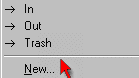
A
new box will appear, asking you to name the new mailbox. You can name it "support"
or whatever you want to call it.
In
our example we called it "Support Mailbox".
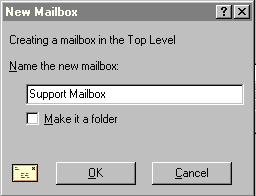
Once
you've done that, then click OK. The long bar on the right hand side that previously
said "in" will now say "support mailbox".

All
you have to do is click on that, and all the mail addressed to "support@yourcompany.com"
will then be filtered into that special mailbox!
When you are done
making your filter, you can close the filters section, by clicking the X on the
top right hand side. A window will appear, asking if you would like to save the
mail filter. Definitely choose YES or else you'll have to create the filter all
over again.