If
you were not able to find any results with your FIND function, but can confirm
the person did in fact make the purchase, issue a new password, but make sure
to tell them in an email message that they must ONLY use the new login information.
You'd
be surprised at how many people will request a new login, but when it arrives
by email, they either won't see it, or simply won't use it, and continue to try
with the old login they were first issued. Also provide the login link, and username
in your response. Never just send the password on it's own assuming they already
have the rest of the information.
Here
is an example of how we email Joe back, so that our response is easy to read.
The
first thing you should do, IF using Eudora, is highlight the message that you
want to quote in your response, as shown below, THEN click reply. Doing so will
quote ONLY that part of the message, so you don't have the headers, or other email
information to worry about!
I
am not sure if this function is available in Microsoft Outlook, but do now it
is not available in Outlook Express. It is extremely useful, and once you've grown
used to it, you won't want to work without it.
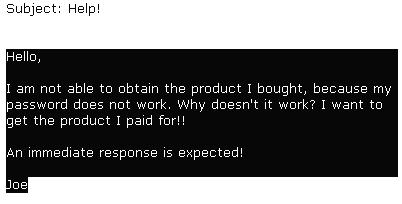
Here
is a what the incoming email looks like when you've highlighted it, prior to clicking
the Reply button.
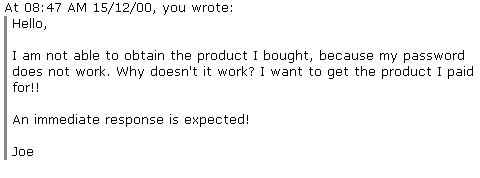
Once
we've highlighted ONLY the text we want to quote back, and have clicked reply,
this is how the outgoing email will be formatted:
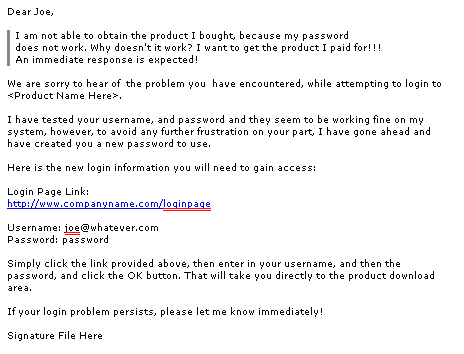
Now,
we really don't want the "At 08:47 AM...." stuff there, so we remove
that, and remove anything else we don't want, then type our message above, and
below that, like this:
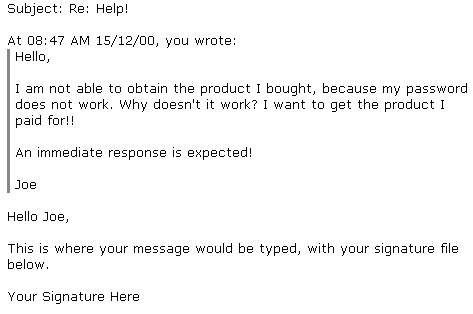
Do
not send a message that looks like this, because it is not easy for the customer
to read.
As
long as your response is easy to read, is well formatted, and contains all the
information that Joe will ever need, you can send it. If it's well written, the
only reply you should get back in return is a "Thank you!!" message,
or something similar.
Of course you should spell check the outgoing email first, to avoid any typing
errors. If you're using Eudora, you can have it automatically alert you of typo's,
so you can fix them, prior to sending it.
Our
example below shows what Eudora looks like, when it spots a typing error:
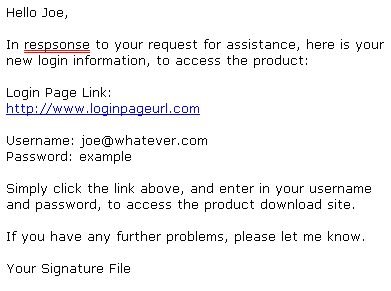
You
can see the typo is underlined in red, so they are easy to spot. If you're not
sure how to correctly spell the word in question, Eudora allows you to "right
click" on the misspelled word, and choose the correct spelling underneath,
like this:
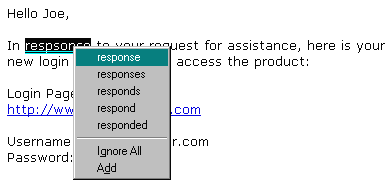
If
you use a specific word a lot, and Eudora always underlines it, saying it is misspelled,
when it's not, such as a URL, you can ADD it to your dictionary inside Eudora,
by clicking on ADD at the end of the drop down menu!
When
you first start using Eudora, you will want to add a few words in there right
away, such as the following commonly used words:
- http://
- www.
- .com
- URL
- yourdomainname
When
Eudora first encounters all of those words, it will tell you they are misspelled,
so add them in right away, and save yourself some time!